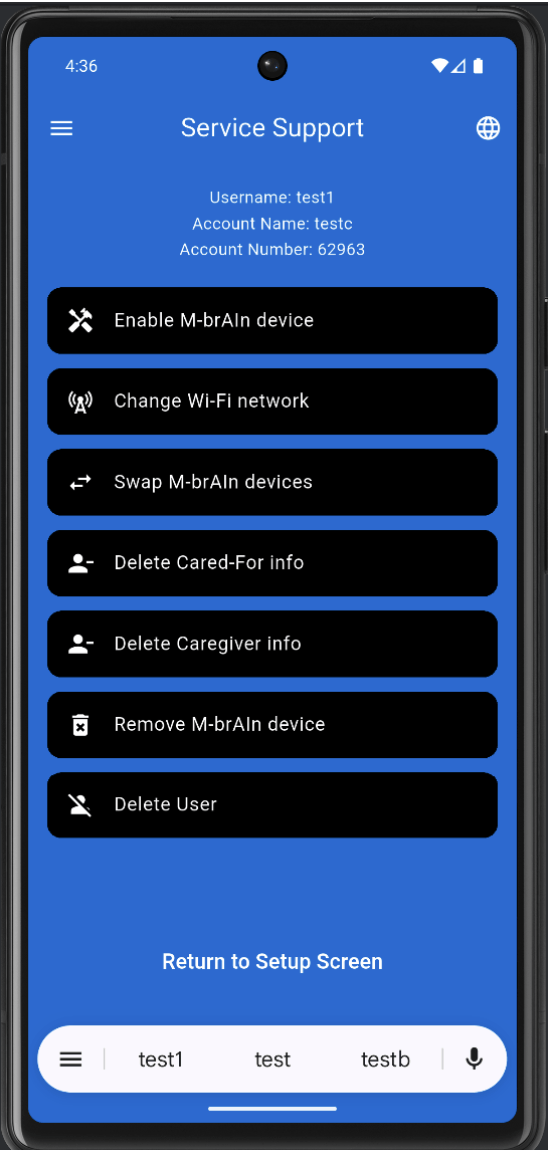
Service Support Menu
What this screen is
Administrative tools for managing devices and data.
How to use it
From here you can:
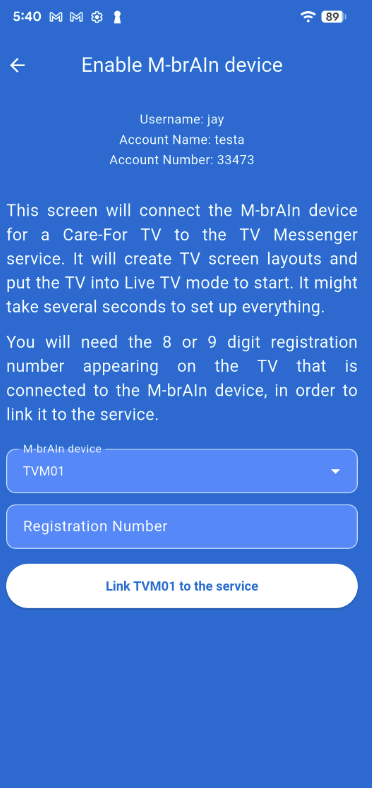
- Enable M‑brAIn device
- Change Wi‑Fi network
- Swap M‑brAIn devices
- Delete Cared‑For info
- Delete Caregiver info
- Remove M‑brAIn device
- Delete User
- Return to Setup Screen
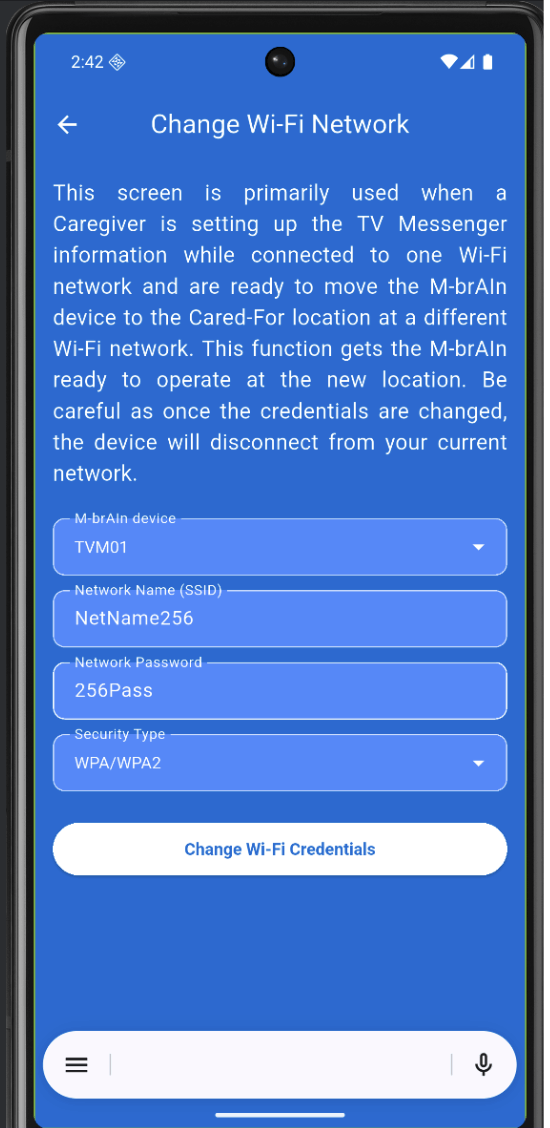
Change Wi‑Fi Network (credentials entry)
What this screen is:
Used when moving the device to the Cared‑For’s location with a different Wi‑Fi network.
How to use it:
1. Select the M‑brAIn device.
2. Enter Network Name (SSID), Network Password, Security Type.
3. Tap Change Wi‑Fi Credentials.
Note: Once the WiFi credentials are changed the M-brAIn device will no longer be connected to your network.
If the information was incorrectly entered, the device does not come up on the new network contact customer service for steps.