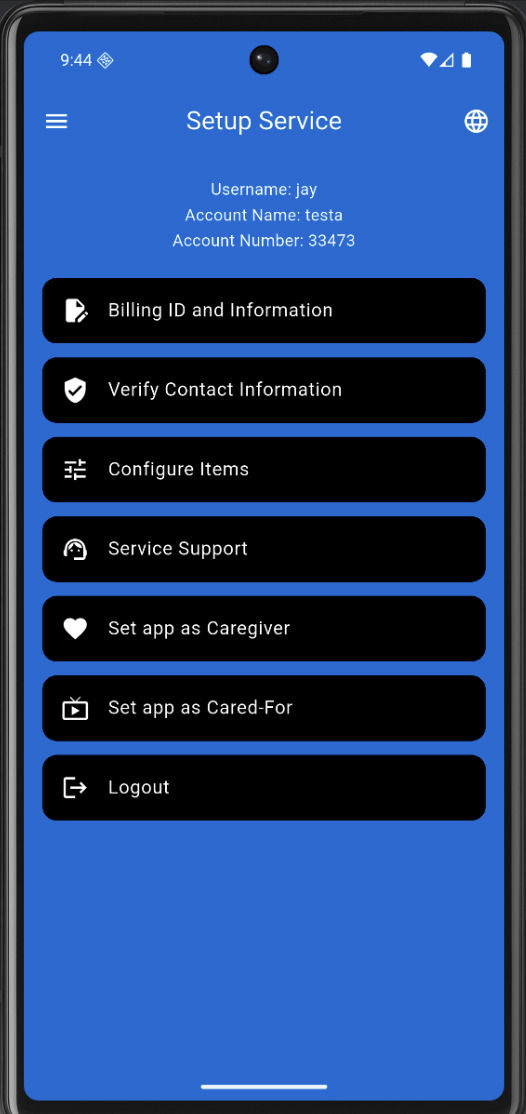
Setup Service - Home


What this screen is: 

A menu for all configuration tasks after login.

How to use it
From here you can:

- Update User Information

- Verify Contact Information

- Configure Items

- Service Support- Enable M-brAIns, setup WiFi network

- Set app as Caregiver - Starts app as caregiver
      - If the slider is enabled (green) the app will start as caregiver send                  message screen
      - Also used to view the caregiver screen

- Set app as Cared‑For - Starts app as Cared-For
       - Same as Caregiver
       - Description but for Cared-For

- Logout

Note: This is the first screen that appears after logging in
Mobirise Website Builder

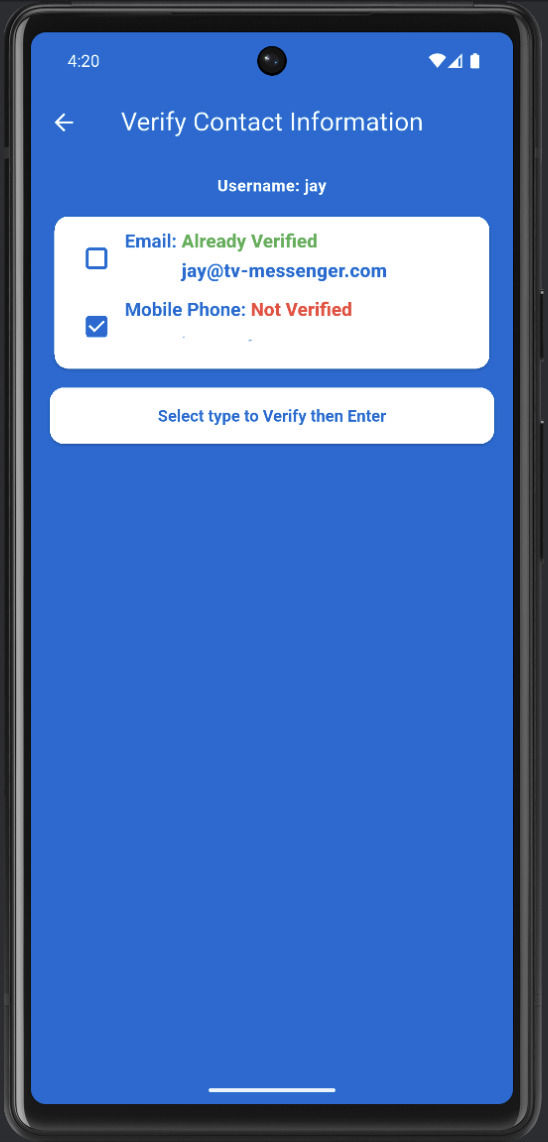
Verify Contact Information

What this screen is
Lets the caregiver verify email or mobile.

How to use it

1. Select Email or Mobile Phone.

2. Follow the verification flow.
     -   A code will be sent
     -   Enter the code emailed or texted

3. Once verified, return to the Setup screen.
     - Verification is necessary to change a password
Mobirise Website Builder


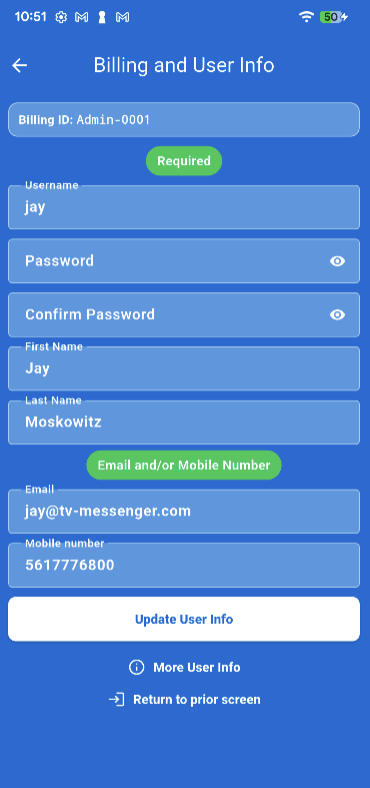
Billing and User Information


What this screen is: 

This is the same username‑and‑password screen you see before logging in, but it also shows up after logging in and includes the billing ID.

How to use it
“The ‘Add Subscriptions and/or Products’ selection allows for new and upgraded subscriptions or to order accessories

Note: This is the first screen that appears after logging in

Mobirise Website Builder

Verify Contact Information

What this screen is
Lets the caregiver verify email or mobile.

How to use it

1. Select Email or Mobile Phone.

2. Follow the verification flow.
     -   A code will be sent
     -   Enter the code emailed or texted

3. Once verified, return to the Setup screen.
     - Verification is necessary to change a password
Mobirise Website Builder

Mobirise