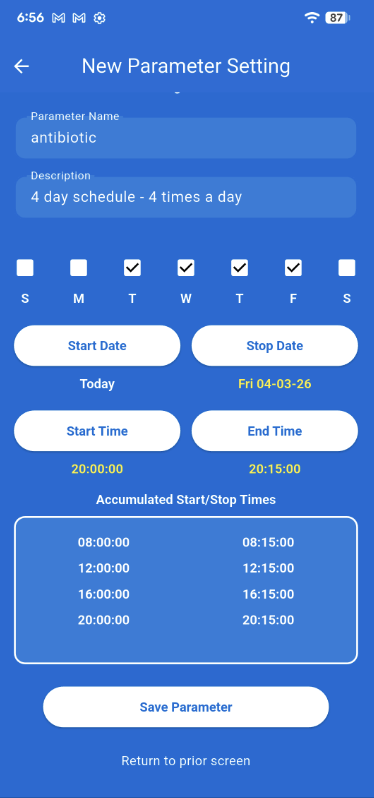
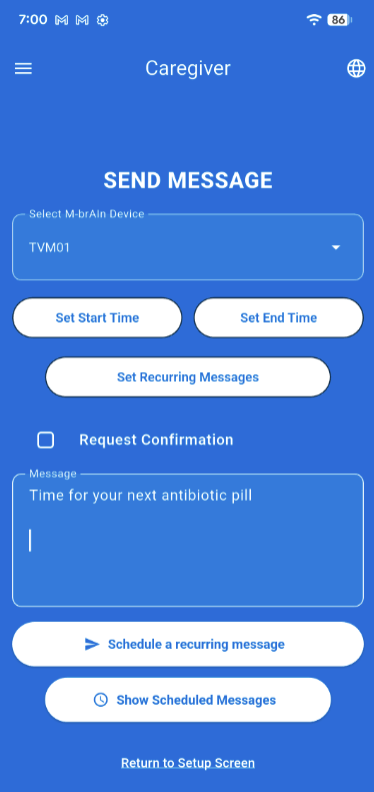
Note: that the Send Message button normally on this screen becomes a
“Schedule a recurring message button”.
Returning to the Recurring Message Setup screen, the yellow status message
will indicate the schedule is activated and being followed.
Note: Each night at midnight, the next day’s messages are scheduled for the
day. The Caregiver SEND MESSAGE screen “Show scheduled Messages” button
will display recurring messages scheduled for today.
What this screen is
Shows all recurring schedules for a device and allows creation/removal.
How to use it
1. Tap New Recurrence Data to define a new schedule.
2. Select an existing schedule to view or delete.
3. Select an optional start and end date. If there is no start date it ends today. If there is no end date, it will run until the parameter is deleted.
4. Set a start time and an optional end time the message is automatically cleared from the TV at the stop time.
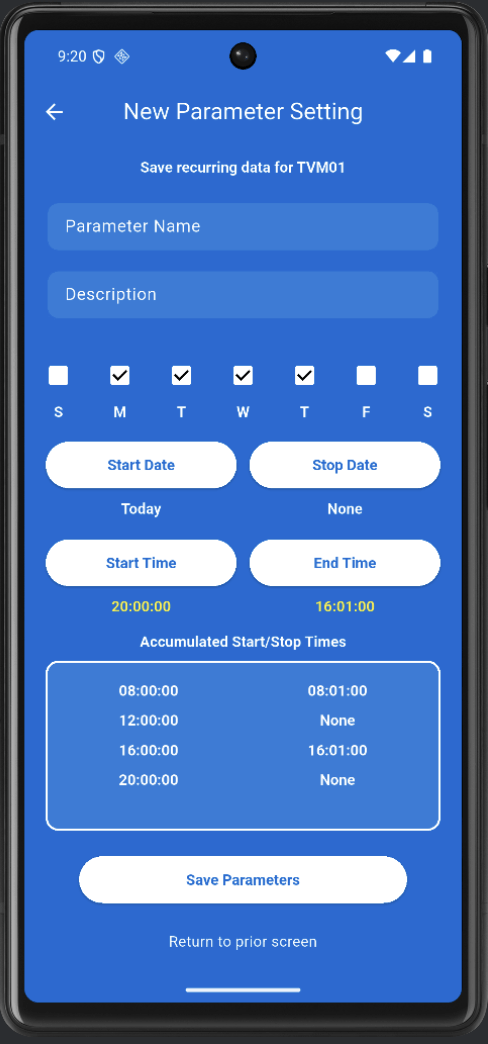
What this screen is
Defines the days, dates, and times for a recurring message schedule.
How to use it:
1. Enter Parameter Name and Description.
2. Select days (S, M, T, W, T, F, S).
3. Set Start Date (e.g., Today) and Stop Date (or None).
4. Set Start Time and End Time.
5. Review Accumulated Start/Stop Times.
6. Tap Save Parameters.
No Code Website Builder