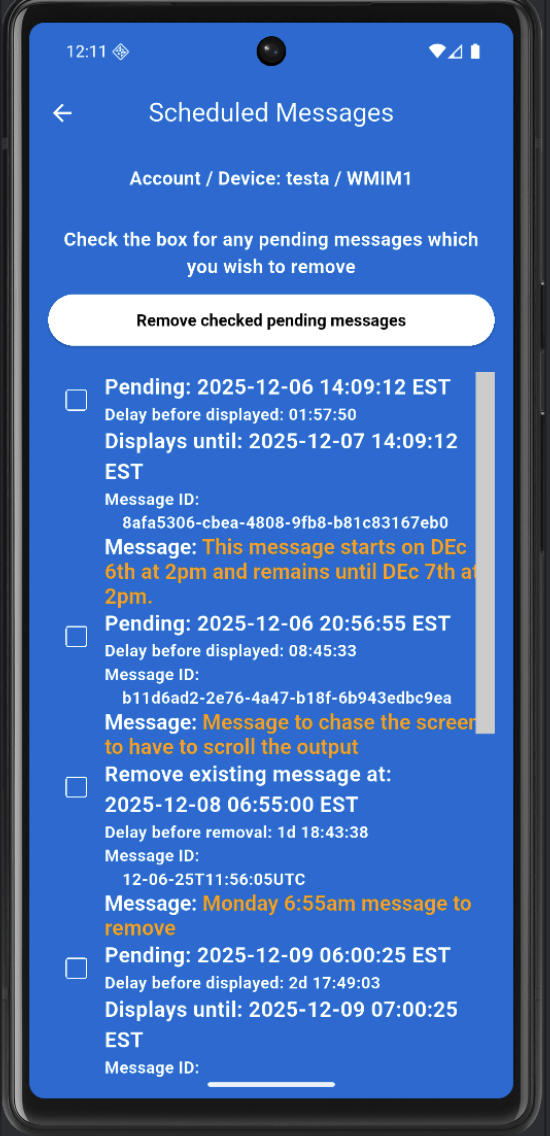
Send Message screen (basic)

What this screen is:
The caregiver’s main tool for sending messages to the TV.

How to use it:

1. Select M‑brAIn Device if multiple devices are on the account

2. Optionally Set Start Time and Set End Time.

3. Optionally Set recurring Messages. (A schedule of times of the day and days of the week)

4. Optionally Request Confirmation. (Sets escalation parameters for alerting the loved-one and contacting the caregiver if their cared-for does not confirm receipt)

5. Enter the Message text.

6. Tap Send Message.

7. Tap Show Scheduled Messages to review pending ones. Any scheduled message may be deleted from this screen.
Mobirise Website Builder

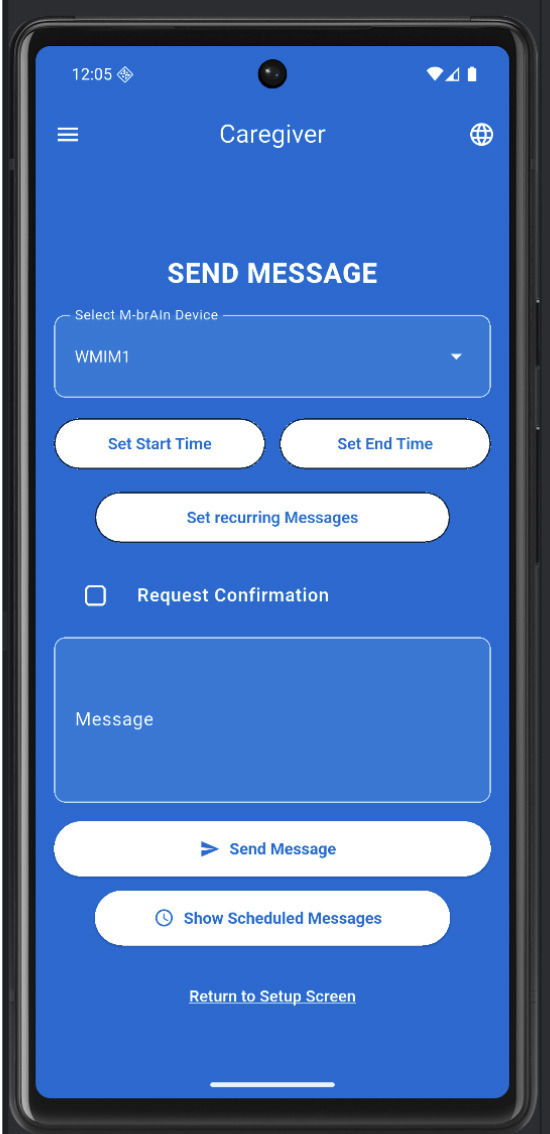
Send Message Screen (Advanced)

What this screen is:
Same as above, but showing an example with start/end date and time.

How to use it:

1. Set Start Time (e.g., Sat 12‑06‑25 14:09:12 EST).

2. Set End Time (e.g., Sun 12‑07‑25 14:09:12 EST).

3. Optionally enable Request Confirmation.

4. Enter the message.

5. Tap Send Message.

6. Tap show pending messages to view pending messages

Note: If there is no stop date or time, the message must be deleted manually via the conformation button, SMS/Text, Telephone call.
Mobirise Website Builder


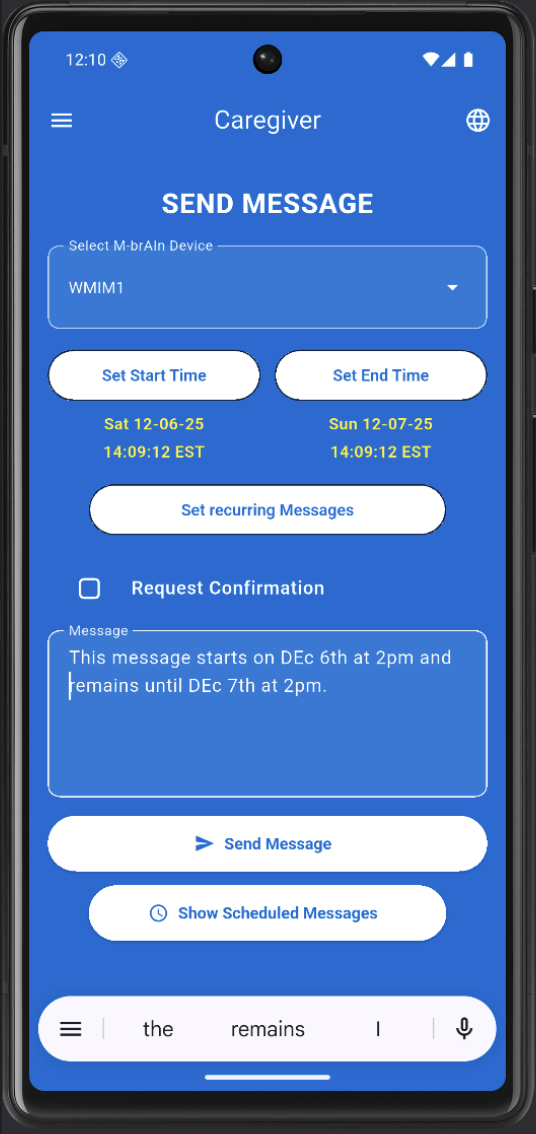
Request Confirmation Defaults

What this screen is:
Defines escalation and timeout behavior when Request Confirmation is used.

How to use it:

1. Adjust Escalate Timeout, Escalate2 Timeout, Escalate3 Timeout, Call Cared‑For timeout, Alert caregiver timeout.

2. Tap Use these defaults to apply them now.

3. Tap Save as new defaults to store them as your standard settings.

Note: Escalated message will be preceded by “PLEASE CONFIRM”.

-
After Escalate Period 1, the message turns RED.

- After Escalate Period 2, the RED message becomes twice as large on the TV.

- After Escalate Period 3, the live TV is turned off and a fullscreen message appears
on the TV along with attention-getting music.

- After the Call Cared For timeout, the service will follow the Cared-For “Call Out
Method” to attempt to reach them.

- After the Alert Caregiver period, the TV returns to the message display with live TV
while it uses the Caregiver “Call Out Method” to contact the caregiver.

Mobirise Website Builder

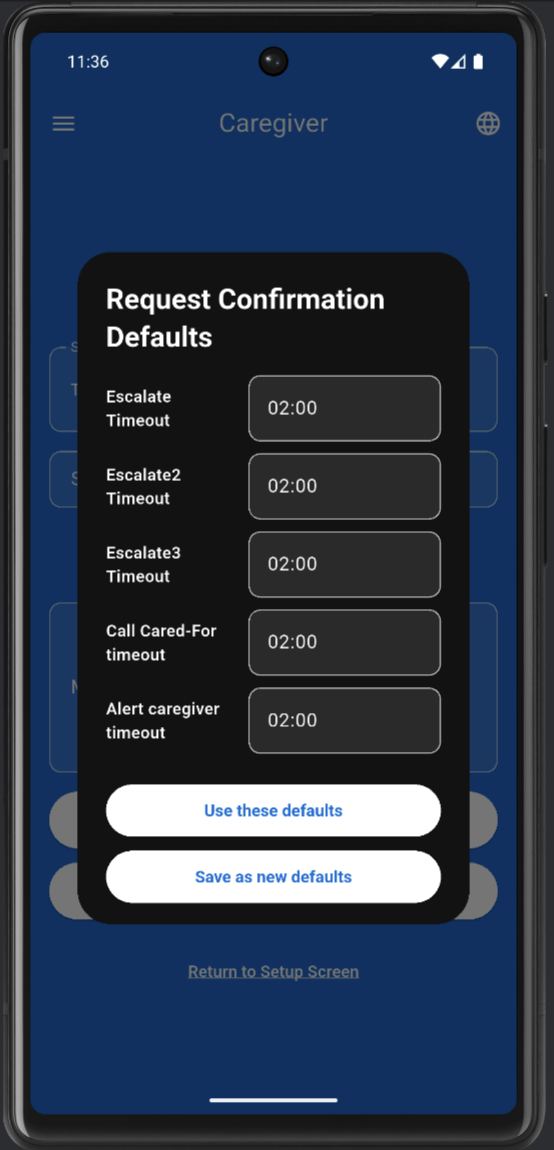
Scheduled Messages

What this screen is
Shows all pending and removal‑scheduled messages for a device.

How to use it

- Review each Pending or Remove existing message entry.

- Check the box for any pending messages you want to remove.

- Tap Remove checked pending messages.

Mobirise Website Builder

Website Builder Software