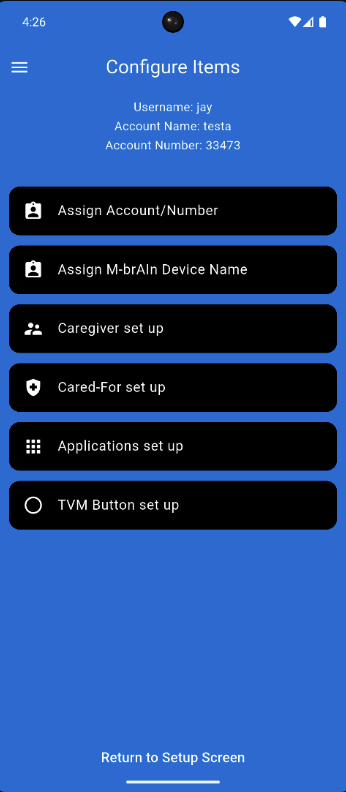
Configure Items - Menu

What this screen is
The heart of the system setup.

How to use it
From here you can:

- Assign Account/Number- Assign Account Name and Number for use on a telephone, or have one assigned to you

- Assign M‑brAIn Device Name- Assign your own

- Caregiver set up - Caregiver parameter

- Cared‑For set up- Configure Application parameters

- Applications set up - Assign a wireless confirmation button to a TV M‑brAIn device

- TVM Button set up

- Return to Setup Screen
Mobirise Website Builder

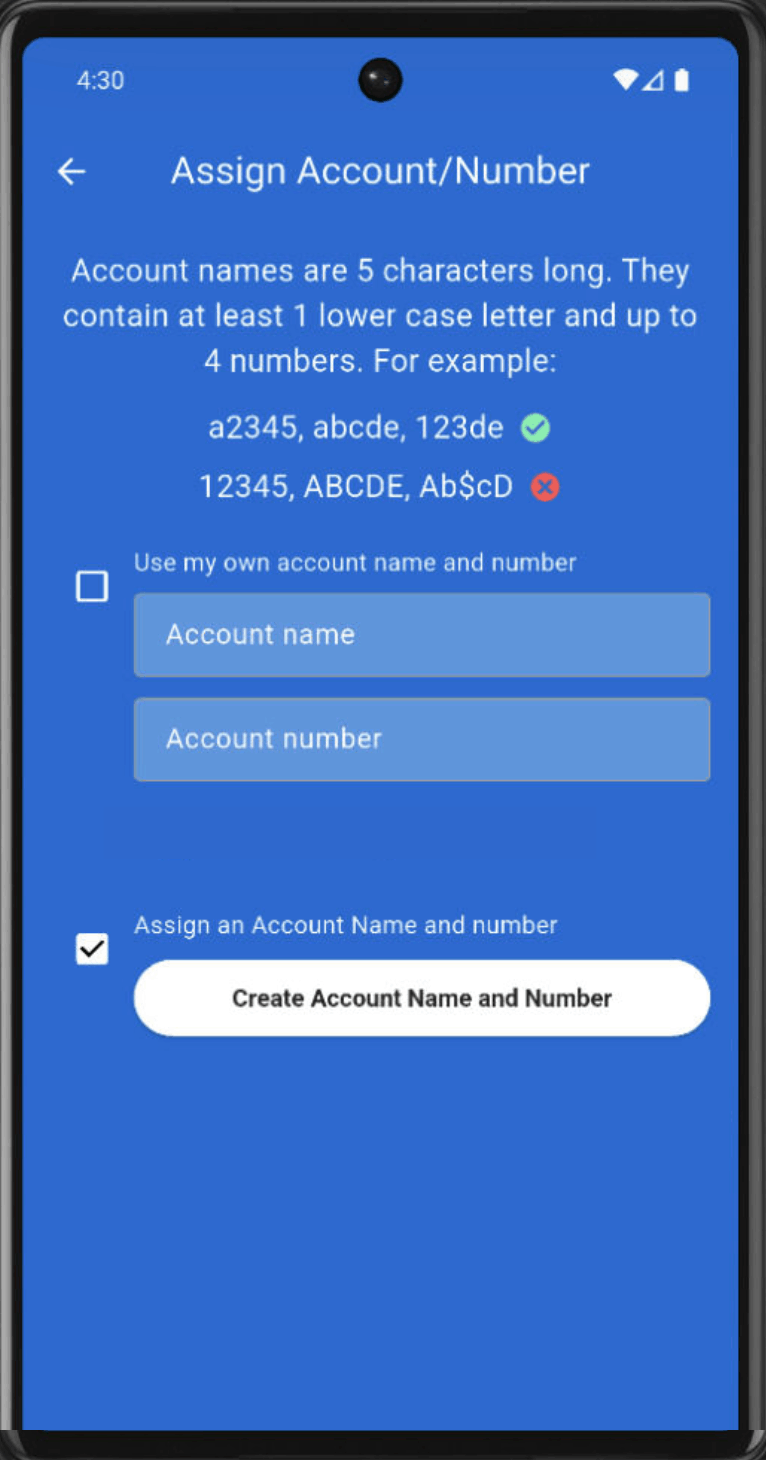
Assign Account Name & Number

What this screen is:
Creates the unique account name for the Caregiver household.

How to use it
1. Select Assign an Account Name and number.

2. Select "use my own" to assign your own name and number
Mobirise Website Builder


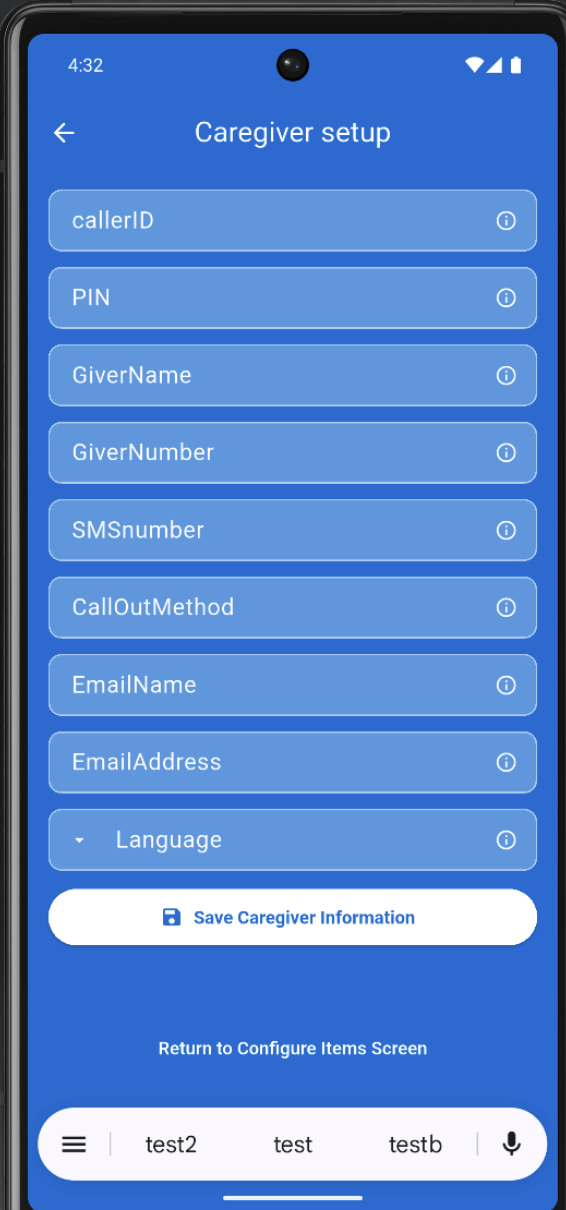
Caregiver Setup

What this screen is
Defines the identity and contact info of the loved-one receiving messages.

How to use it

1. Enter Cared-For Name, Phone Number, SMS/Text number, The Language for the TV messages, and the Time Zone where the TV is located.

2. Enter the Caller ID of the phone the cared for party will use to confirm messages via telephone. This account must not be associated with other accounts/devices 

3. Enter a unique PIN number used as a password on telephone calls to confirm messages. (The PIN must be unique for the caregiver and all the devices)

4. The callout method specifies how the service attempts to contact a Cared-For party if they have not confirmed an important message. It may be sent to:
           -Phone
           -SMS

Note: Each item shows an information button as 'i' press this button for a hint on what to input

Mobirise Website Builder


Configure Items - Menu

What this screen is
The heart of the system setup.

How to use it
From here you can:

- Assign Account/Number- Assign Account Name and Number for use on a telephone, or have one assigned to you

- Assign M‑brAIn Device Name- Assign your own

- Caregiver set up - Caregiver parameter

- Cared‑For set up- Configure Application parameters

- Applications set up - Assign a wireless confirmation button to a TV M‑brAIn device

- TVM Button set up

- Return to Setup Screen

Mobirise Website Builder

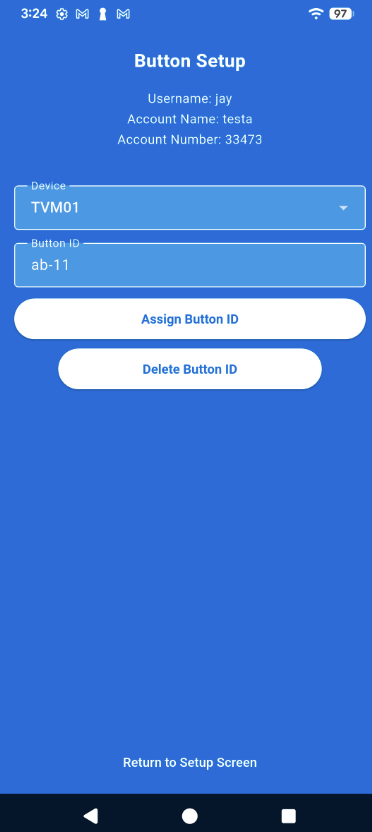
Button Setup

Connect a Wireless Confirmation button to a TV M‑brAIn device

The button ID will be found on the back of the button. It may also be found if examine the Bluetooth settings of a phone the button may be connected to.


To configure the Confirmation button to the wireless network, refer to instruction at this link.

Mobirise Website Builder

HTML Maker