Applications Setup

What this screen is
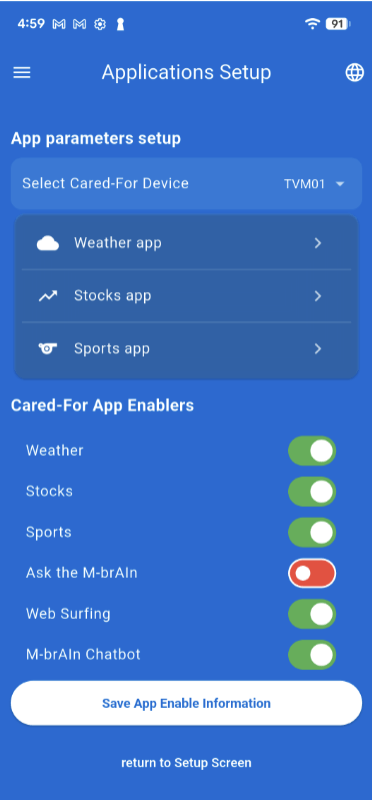
Caregiver toggles which apps the Cared‑For can use.

How to use it

1. Select Devices (if there are multiple devices on the account)

2. Use the slide switches and turn those apps to green that you wish this
Cared for TV to use the specified app.

3. Select one of the listed apps to set configure sets of predefined
parameters for that app.
For Example, view the set up for the weather app below.
Mobirise Website Builder

Ask M-brAIn

What this screen is
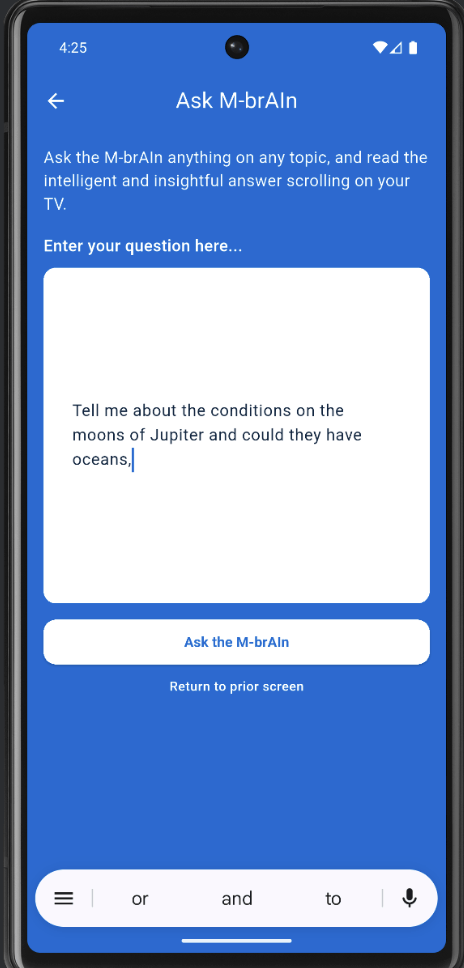
Allows the Cared‑For to ask questions via TV and see answers scroll.

How to use it

1. Enter your question in the text field.

2. Tap Ask the M‑brAIn.

3. Read the answer as it scrolls on the TV.

4. Tap Return to prior screen to go back.
Mobirise Website Builder


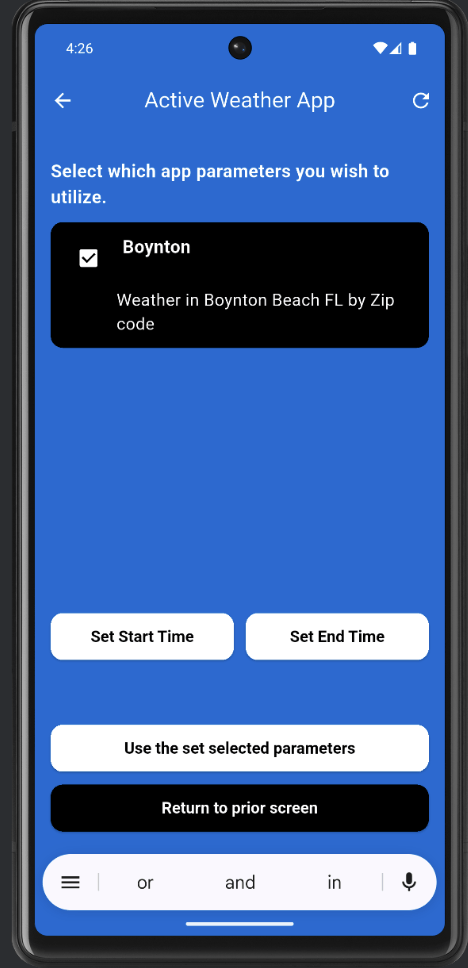
Active Weather App (parameter selection)

What this screen screen is:
Let the caregiver choose which weather parameter set is active, and optionally set start/end times.

How to use it

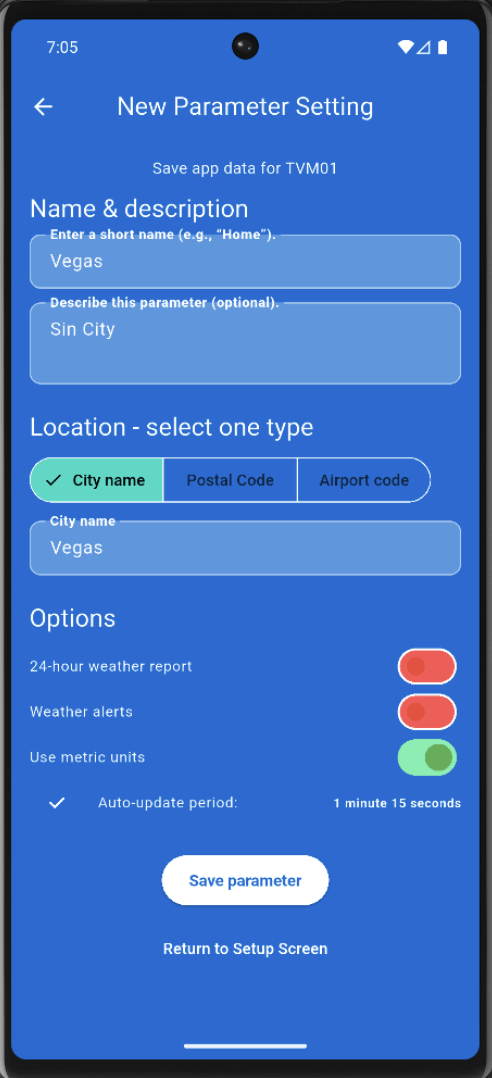
1. Define a unique name for the set of parameters being created.

2. Add an optional description to explain what’s being displayed.

3. Location may be the:

    • City Name
    • The postal code
    • A close by airport code name (JFK, LGA, BOS, etc.)

4. Set the options:

    • Provide a full 24 hour report
    • Display weather alerts that may occur while displaying
    • Use Metric Units instead of Imperial Units

5. Set an automatic update period in hours, minutes, seconds

Mobirise Website Builder

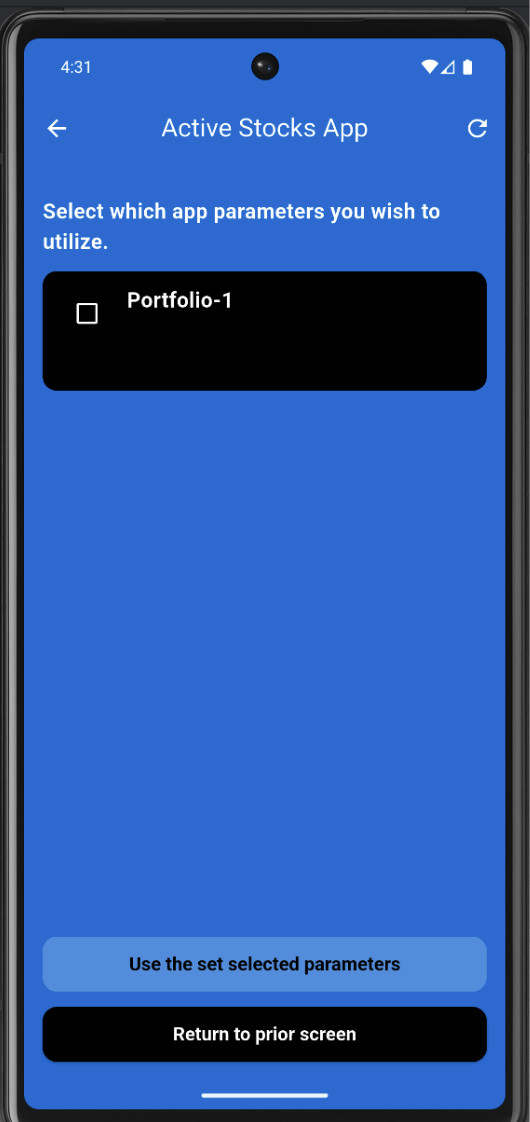
Active Stock App

What this screen is:
Lets the caregiver choose which stock parameter set is active.

How to use it:

1. Select a parameter (e.g., Portfolio‑1).

2. Tap Use the set selected parameters.

Mobirise Website Builder


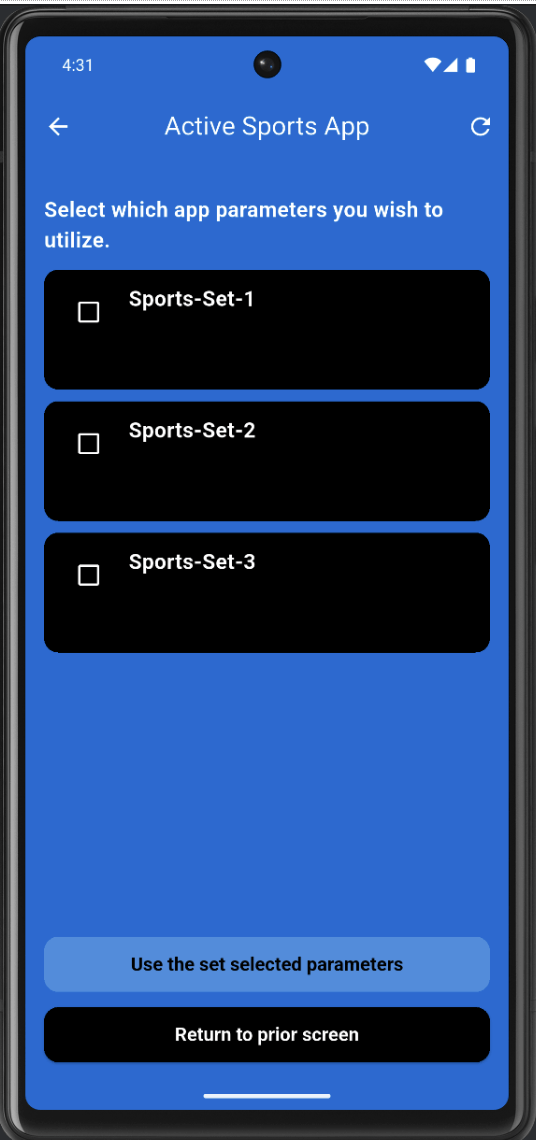
Active Sports App

What this screen is:
Lets the caregiver choose which sports parameter sets are active.

How to use it:

1. Select one or more sets (e.g., Sports‑Set‑1, Sports‑Set‑2, Sports‑Set‑3).

2. Tap Use the set selected parameters.

Mobirise Website Builder


Weather App Parameters Setup

What these screens are:
Define and edit weather parameter sets for different locations.

New Parameter:

1. Enter Parameter Name and Description.

2. Set Location (postal code or city).

3. Enable 24‑hour Weather Report, Weather Alerts, Metric if desired.

4. Set Auto‑update period.

5. Tap Save app data for TVM01 or Remove this parameter set if deleting.

Setting a New Parameter:

1. Enter short name (e.g., “Vegas”).

2. Enter description (e.g., “Sin City”).

3. Choose Location type (City name / Postal Code / Airport code).

4. Enter the location (e.g., city name “Vegas”).

5. Choose options: 24‑hour weather report, Weather alerts, Use metric units.

6. Set Auto‑update period (e.g., 1 minute 15 seconds).

Mobirise Website Builder

Offline Website Builder